
Guardsman Discord
This documentation details how to set up the Guardsman Discord bot in your Discord servers.
Prerequisites
Before inviting and setting up the Guardsman Discord bot, you need to complete some steps if you have not already.
If you are the owner of a group:
- Sign up for a Guardsman account on the Guardsman Web Panel
- Create a group on the panel for your community
If you are an administrator in a group:
- Be invited to your group on the Guardsman Web Panel
- Have a role with the "Manage Whitelists" permission
- Ideally have permission to invite the bot to a new server
Inviting the bot
The following steps detail how to invite the bot to your Discord server.
- Log onto the Guardsman Web Panel
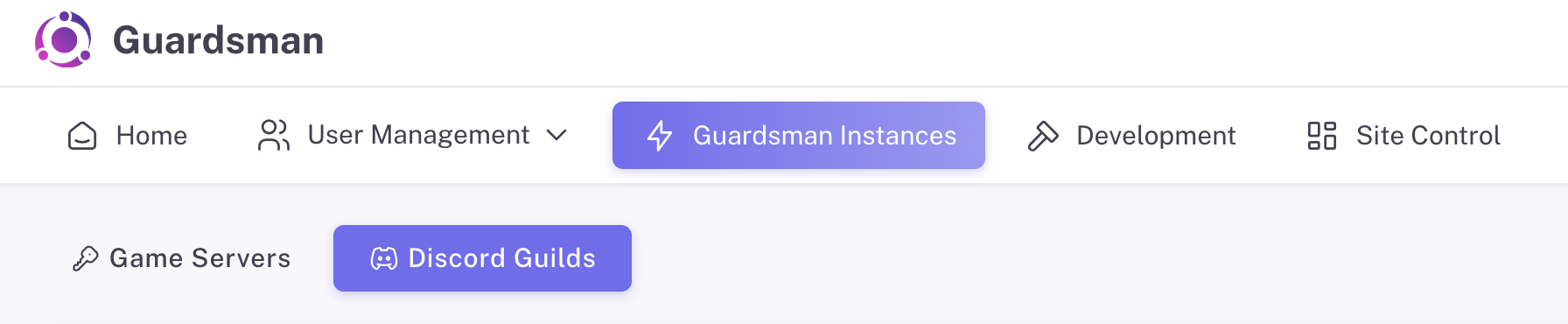
- Go to the "Instances" section and then to the "Discord Guilds" tab
- The "Instances" button may be hidden in a hamburger menu, accessible by clicking the three lines in the top left
- Click the "Invite To Guild" button
- You'll be redirected to a standard Discord bot invite page, where you'll select the server to invite the bot to.

- Congrats! You should have the bot in your server now
Bot setup
The following section details how to set up some common Discord bot features.
Verification and Role Binds
Roblox communities that use Discord commonly have bots like RoVer to manage giving different roles to members of their Roblox group based on their rank. Guardsman has this feature too! Once you have invited the Discord bot (as detailed in the "Inviting the bot" section), you can set up 5 different kinds of binds.
- Group binds: binding a Discord role to a Roblox group rank. This is probably what you'll want most of the time
- Discord command:
/bind group - Arguments
- Role: the Discord role to bind -- you should be able to select it with the menu in Discord
- Group: the ID of the group to bind to (doesn't have to be the one your Guardsman Web Panel group signed up with!)
- Minrank: optional, the minimum rank that a user can have to get this role. Defaults to 0 (careful!)
- Maxrank: optional, the maximum rank that a user can have to get this role. Defaults to 255
- Example:
/bind group role:@Employee group:123 minrank:3 maxrank:5This will bind the Employee role in Discord to members in group 123 with ranks 3, 4, or 5.
- Badge binds: binding a Discord role to a badge in a Roblox game
- Discord command:
/bind badge - Arguments
- Role: the Discord role to bind -- you should be able to select it with the menu in Discord
- Badge: the Roblox ID of the badge to bind to
- Gamepass binds: binding a Discord role to a gamepass in a Roblox game
- Discord command:
/bind gamepass - Arguments
- Role: the Discord role to bind -- you should be able to select it with the menu in Discord
- Gamepass: the Roblox ID of the gamepass to bind to
- User binds: binding a Discord role to a specific user. Useful for "manual verification"
- Discord command:
/bind user - Arguments
- Role: the Discord role to bind -- you should be able to select it with the menu in Discord
- User: the Discord user to bind the role to -- if you type an "@" symbol, you should be able to select them via mentioning them
- Default bind: setting up a default verification role
- Discord command:
/bind default - Arguments
- Role: the Discord role to bind -- you should be able to select it with the menu in Discord
Creating Role Binds
Creating role binds should be as easy as finding which type of bind(s) you want to use above and running the Discord command with the correct arguments.
Removing Role Binds
Removing a role bind can be done in a few easy steps.
- Run
/bindsand make note of the output - it'll list all of your binds, and more importantly, the ID for each - Find the bind you want to remove, and make note of/copy its ID
- Run
/unbindwith the ID of the bind you want to remove
For example, if ID 1 binds @Employees to ranks 3 to 5 of group 123, /unbind id:1 would remove it.